

If you’ve spent any time researching project management software, you’ve probably run into ClickUp more than once. It’s one of those tools that gets mentioned in almost every “best PM software” roundup, and for good reason — it tries to do everything under one roof: task management, docs, chat, goals, and yes, serious automation power. But does it actually live up to the hype, and is it worth switching your team over to? Let’s break it down.That’s exactly what this ClickUp Review and Automation guide will help you figure out.
In this ClickUp Review and Automation guide, I’ll walk you through what ClickUp actually does well, where it can get overwhelming, what it costs, and how to set up automations that genuinely save you hours every week.
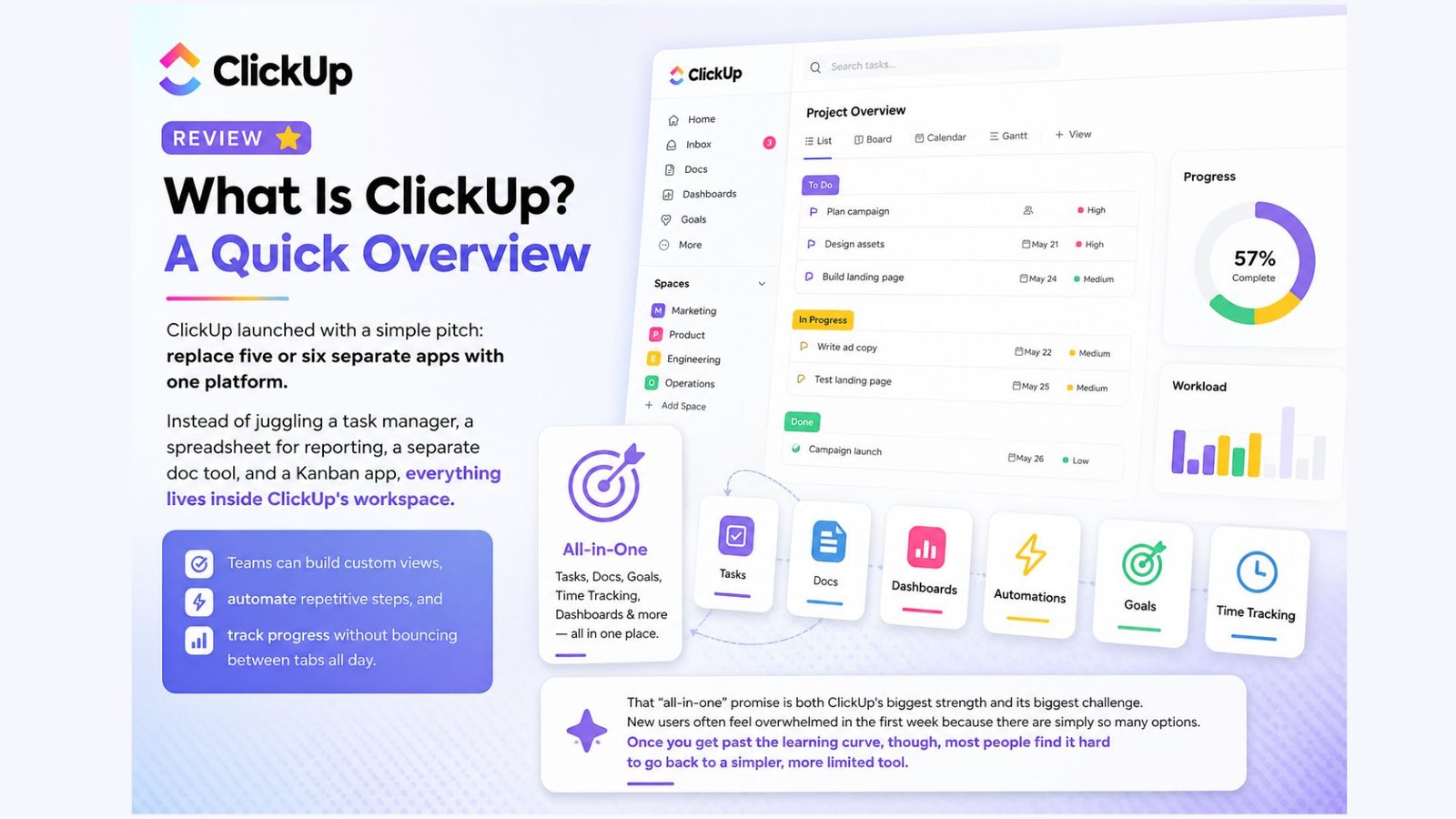
ClickUp launched with a simple pitch: replace five or six separate apps with one platform. Instead of juggling a task manager, a spreadsheet for reporting, a separate doc tool, and a Kanban app, everything lives inside ClickUp’s workspace. Teams can build custom views, automate repetitive steps, and track progress without bouncing between tabs all day.
That “all-in-one” promise is both ClickUp’s biggest strength and its biggest challenge. New users often feel overwhelmed in the first week because there are simply so many options. Once you get past the learning curve, though, most people find it hard to go back to a simpler, more limited tool.
Let’s talk numbers, because click up pricing is one of the first things people search before committing to a new tool.
One thing worth flagging: ClickUp’s AI assistant, ClickUp Brain, is billed separately from the core plans, so if you want AI features baked into your workflow, budget a bit extra on top of your per-seat cost. Also note that every member of a workspace has to be on the same plan tier — you can’t mix Free and Business users in one team, which matters if you’re budgeting for a mixed team of contractors and full-time staff.
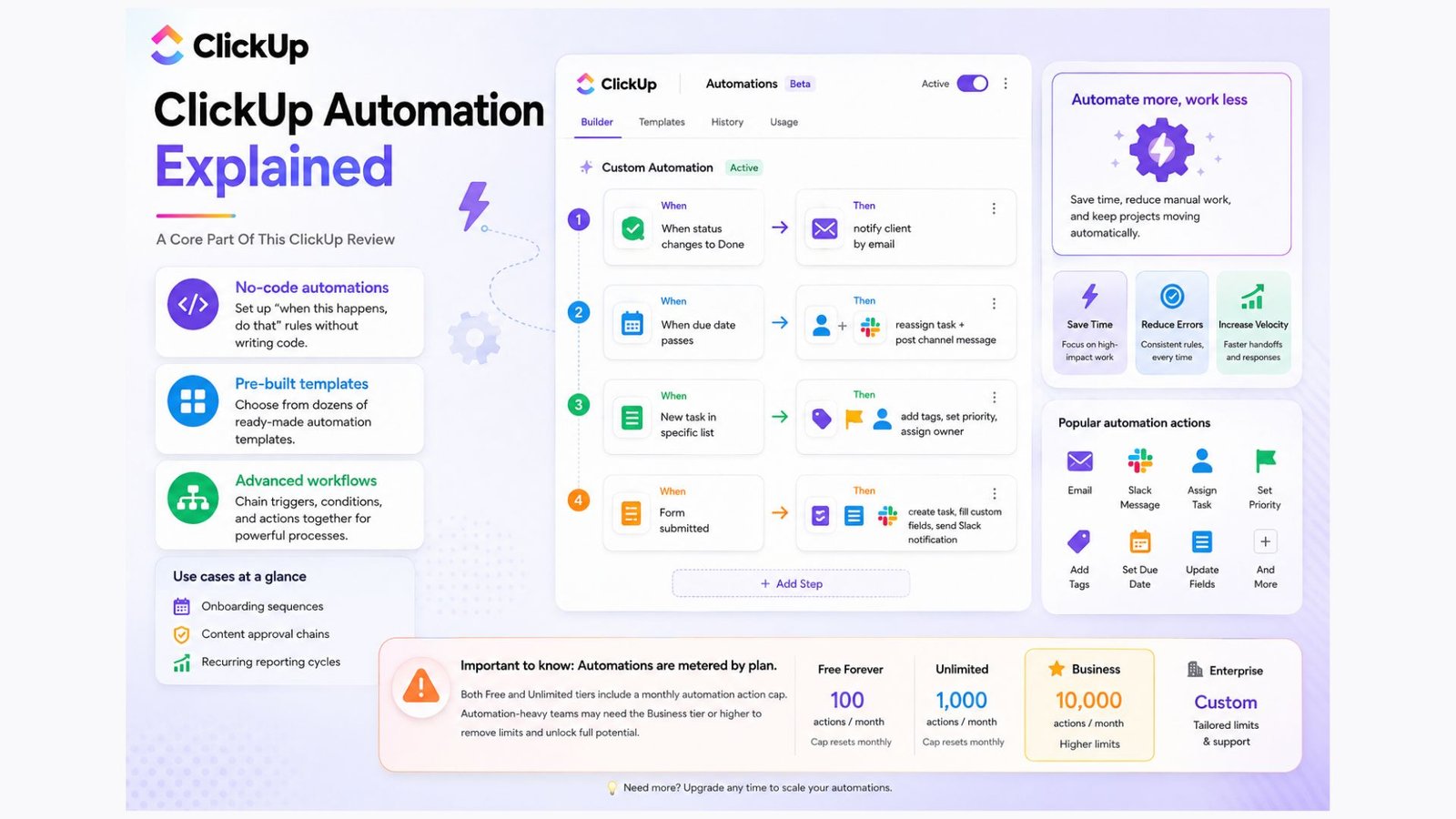
This is where ClickUp genuinely separates itself from a lot of competitors. Clickup automations let you set up “when this happens, do that” rules without writing a single line of code.
A few examples of what you can build with clickup automation:
ClickUp ships with dozens of pre-built automation templates, so you don’t need to start from a blank canvas. For more advanced setups, you can chain multiple triggers and conditions together, which is genuinely useful for agencies managing recurring client work — think onboarding sequences, content approval chains, or recurring reporting cycles that used to eat up half a day every week.
The catch: automation actions are metered by plan. Free and Unlimited tiers cap how many automation runs you get per month, so if your workflows are automation-heavy, you’ll want to budget for the Business tier or higher.
A single clickup dashboard can pull together data from every space in your workspace — task counts, time tracked, sprint velocity, overdue items, and more — into one visual screen. Instead of digging through individual lists to figure out where a project stands, managers can glance at a dashboard and get the full picture in seconds.
What makes clickup dashboards particularly useful for client-facing agencies is the ability to build a dedicated dashboard per client or per project and share a read-only version externally. That means no more manually compiling weekly status reports — the dashboard updates itself in real time as tasks move through the pipeline.
Widgets you can drop into a dashboard include burnup/burndown charts, workload views, time-tracked summaries, and custom calculated fields. For teams that live and die by KPIs, this single feature can justify the upgrade from the Free plan on its own.
If your team thinks visually, clickup kanban boards will feel familiar right away. Tasks move through columns — “To Do,” “In Progress,” “Review,” “Done” — and you can customize those stages to match your actual process instead of forcing your workflow into someone else’s template.
What sets ClickUp’s Kanban implementation apart from simpler tools is that the board isn’t a separate app bolted onto the task manager — it’s just another view of the same underlying task data. Switch a task from Kanban to List view to Calendar view, and nothing gets lost or duplicated. For teams running an agile or Scrum-style process, you can also layer sprint points and swimlanes onto the board without needing a separate plugin.
Nobody wants to build a workspace from scratch, and that’s where click up templates come in. ClickUp maintains a public template library with hundreds of pre-built setups for marketing calendars, product roadmaps, CRM pipelines, editorial calendars, OKR tracking, and more.
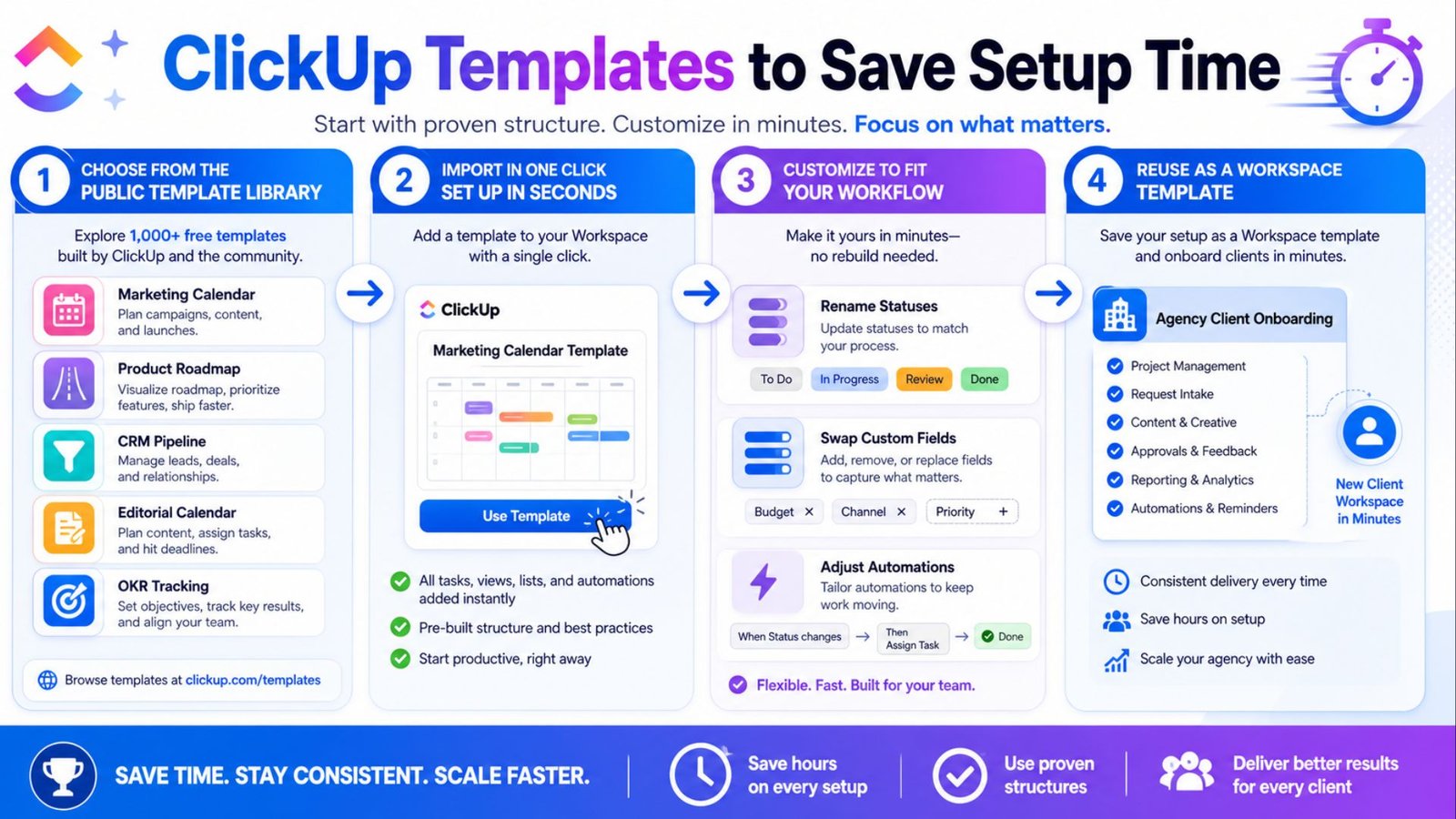
Importing a template takes a couple of clicks, and most are fully customizable afterward — you can rename statuses, swap out custom fields, and adjust automations to match your actual process. For agencies onboarding new clients regularly, saving your own workspace as a reusable template is a huge time-saver, since it means every new client gets a consistent setup without rebuilding lists and automations from zero each time.
Clickup reports give managers a way to track team performance without manually pulling numbers together. You can generate reports on time tracked per person, tasks completed versus overdue, workload distribution across the team, and sprint burndown trends.
These reports pair naturally with the dashboard feature above — dashboards give you the live snapshot, while reports let you export and analyze historical trends over weeks or months. For agencies that bill clients based on time or deliverables, the reporting layer alone can replace a separate time-tracking or invoicing tool.
Clickup email integration lets you connect your inbox directly to your workspace, so you’re not constantly switching between Gmail or Outlook and your task manager. You can send and receive emails from inside a task, automatically turn incoming emails into tasks, and trigger automations based on email activity.
This is especially useful for support or client-facing teams: an incoming client email can automatically become a task, get assigned to the right person, and move through a status pipeline — all without anyone manually copying and pasting details.
For marketing teams specifically, clickup marketing setups typically combine a content calendar view, campaign task lists, approval automations, and a dashboard tracking deliverables against deadlines. Agencies running paid ads, SEO campaigns, or content production for multiple clients often build one workspace per client, using templates to standardize onboarding and automations to handle repetitive status updates and deadline reminders.
Because ClickUp connects with tools like Google Drive, Slack, and various ad platforms through integrations, marketing teams can keep creative assets, campaign performance notes, and task management in one connected system instead of scattered across five different apps.
The Free Forever plan includes a limited number of automation actions per month. If your workflows depend heavily on automation, you’ll likely need to upgrade to the Unlimited or Business plan for a higher monthly cap.
ClickUp charges per user, per month, and every member of a workspace must be on the same plan tier. Billing annually typically works out cheaper per user than paying month to month.
Yes. Many agencies save a standardized workspace setup as a template so every new client gets consistent lists, dashboards, and automations without rebuilding everything from scratch.
Yes, email integration connects with major email providers, letting you send, receive, and automatically convert emails into tasks directly inside your workspace.
This ClickUp Review and Automation breakdown makes one thing clear: ClickUp earns its reputation. ClickUp earns its reputation as one of the most feature-dense project management platforms available. The automation engine, customizable dashboards, and flexible views make it a genuinely strong choice for teams that have outgrown spreadsheets or simpler tools like Trello. The tradeoff is a steeper learning curve and pricing that can climb quickly once you add AI features or scale past a small team.
If you’re managing client work, running marketing campaigns, or just tired of manually updating five different status reports every week, ClickUp’s automation and dashboard tools alone are worth the trial period.