

OneNote has been around since 2003, which in software years makes it practically ancient — and yet it’s still one of the most-used note-taking apps on the planet, mostly because it comes free with any Microsoft account. This OneNote review looks at what still works well in 2026, where it genuinely falls short against newer tools like Notion, and how to actually use the features people search for most.
Short version: OneNote remains the best free option for anyone already living inside Microsoft 365, especially for handwritten notes and freeform organization. It’s not the right pick if you need databases, advanced AI, or a more structured workspace.
OneNote is a free-form digital notebook — think of it as a stack of physical notebooks, sections, and pages, except everything syncs across your devices automatically. Unlike block-based tools that force content into a fixed layout, OneNote lets you place text, images, handwriting, and audio recordings anywhere on the page, which makes it a favorite for visual thinkers and stylus users on Surface and iPad devices.
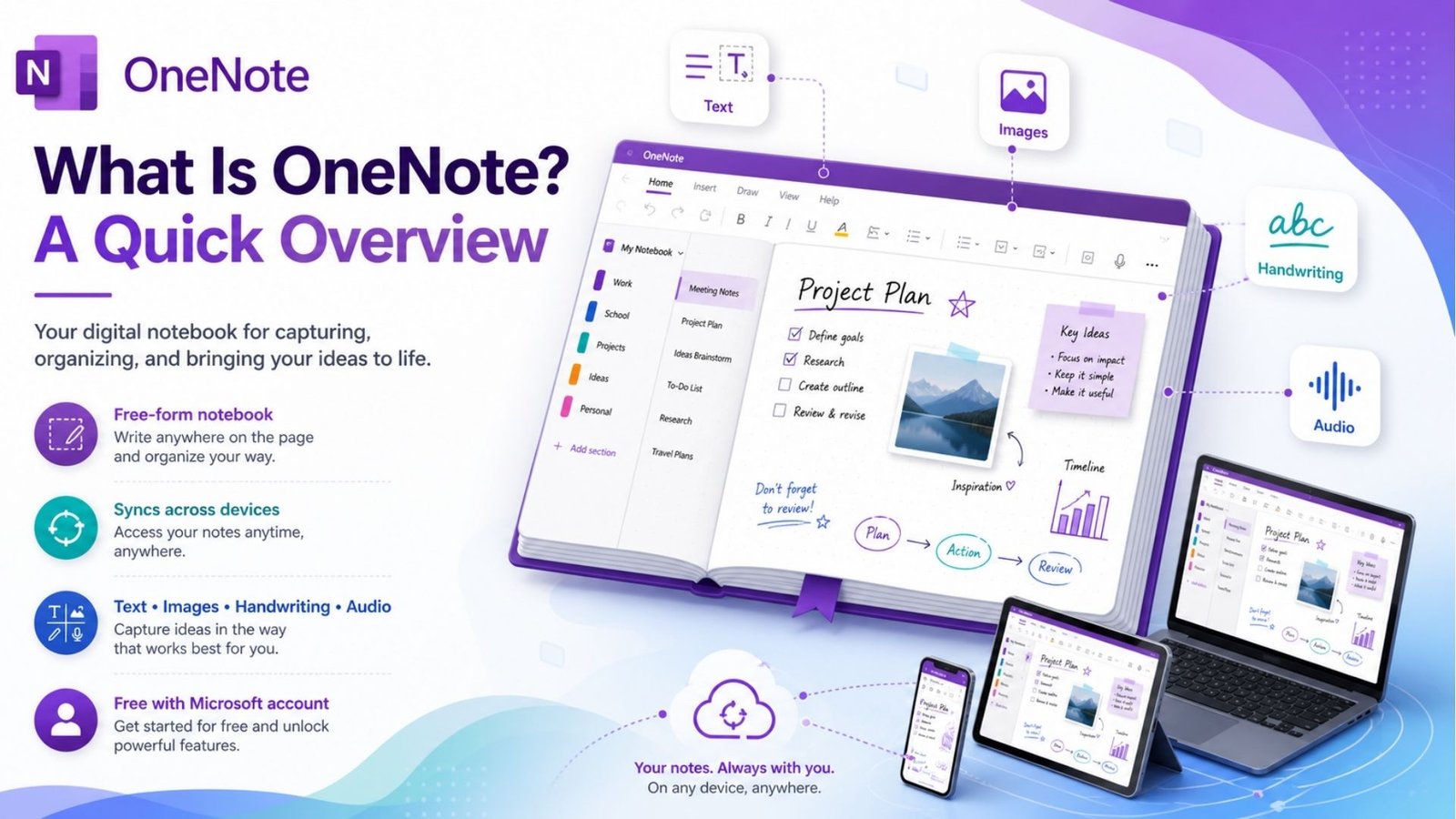
It comes free with any Microsoft account, with no artificial feature gate on the core note-taking experience — you only start paying if you need more OneDrive storage or Microsoft 365 Copilot’s AI features layered on top.
A common question is how well OneNote and Excel integrate, since both live inside the Microsoft ecosystem. You can embed an Excel spreadsheet directly into a OneNote page, and it stays live and editable — double-clicking the embedded table opens Excel’s full editing tools without leaving your notebook. This is genuinely useful for anyone tracking budgets, project data, or simple databases alongside written notes, without needing to switch apps constantly.
The integration isn’t seamless in every direction, though — large or complex spreadsheets can feel cramped inside a OneNote page, and formatting sometimes shifts slightly once embedded. For simple tables and quick reference data, it works well. For anything spreadsheet-heavy, you’ll likely still prefer working in Excel directly and just linking back to it.
Some small business owners and freelancers specifically search for OneNote CRM setups, hoping to track clients without paying for dedicated CRM software. It’s technically possible — you can create a notebook with a section per client, tagging systems for follow-ups, and embedded Excel tables for tracking deal stages or contact details.
The honest limitation is that OneNote has no relational database structure, automated reminders tied to contact records, or reporting dashboards the way a real CRM does. For a solo freelancer tracking a handful of ongoing client relationships, a OneNote-based system can genuinely work. For anything beyond that — a sales pipeline with multiple team members or automated follow-up sequences — a dedicated CRM tool will save you more time than it costs.
OneNote planner templates are one of the more popular reasons people adopt the app for personal organization. A digital planner OneNote setup typically uses the freeform canvas to recreate a physical planner layout — weekly spreads, habit trackers, and goal-setting pages — often combined with a stylus for handwritten entries on Surface or iPad devices.
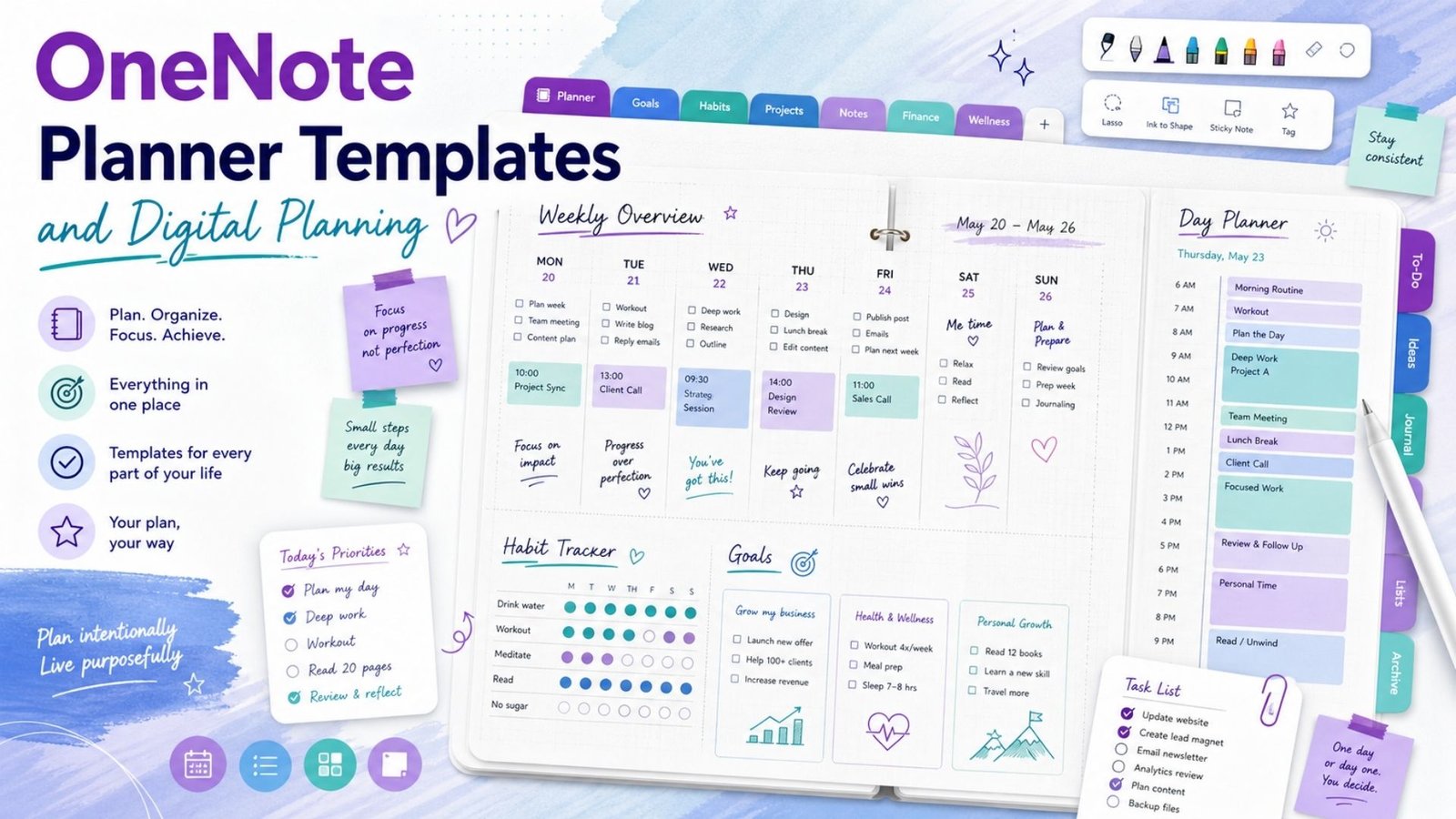
A common specific request is the OneNote day planner template, which usually blocks out hourly sections alongside a running task list on the same page. Because OneNote’s canvas has no fixed grid, you can freely resize sections to match how you actually plan your day, rather than being locked into a rigid template structure the way some competing apps require.
For teams considering a project management OneNote template, it’s worth setting expectations correctly upfront. OneNote can absolutely hold a project plan — task lists, meeting notes, embedded timelines, and linked Excel trackers all fit naturally into its notebook structure. What it can’t do is what dedicated project tools handle automatically: kanban boards, dependency tracking, or automated status updates across a team.
For a small internal project with a handful of contributors, a well-organized OneNote template can work fine, especially if your team already lives in Microsoft 365 daily. For anything involving multiple workstreams, deadlines depending on each other, or client-facing reporting, a purpose-built tool will likely serve you better long-term.
New users often wonder how do you save in OneNote, and the honest answer is refreshingly simple: you don’t have to. OneNote automatically saves every change continuously as you type, with no manual save button anywhere in the interface. As long as you’re signed into your Microsoft account and connected to the internet, changes sync to OneDrive in real time.
If you’re working offline, changes save locally on your device and sync automatically the next time you reconnect. The one situation worth watching is working across multiple devices simultaneously on the same notebook — occasional sync conflicts can create duplicate pages, though OneNote generally flags these clearly rather than silently overwriting content.
A frequent search is for practical OneNote organization tips, since the notebook-section-page hierarchy that feels simple at first can get messy fast as your notes pile up. A few habits that genuinely help:
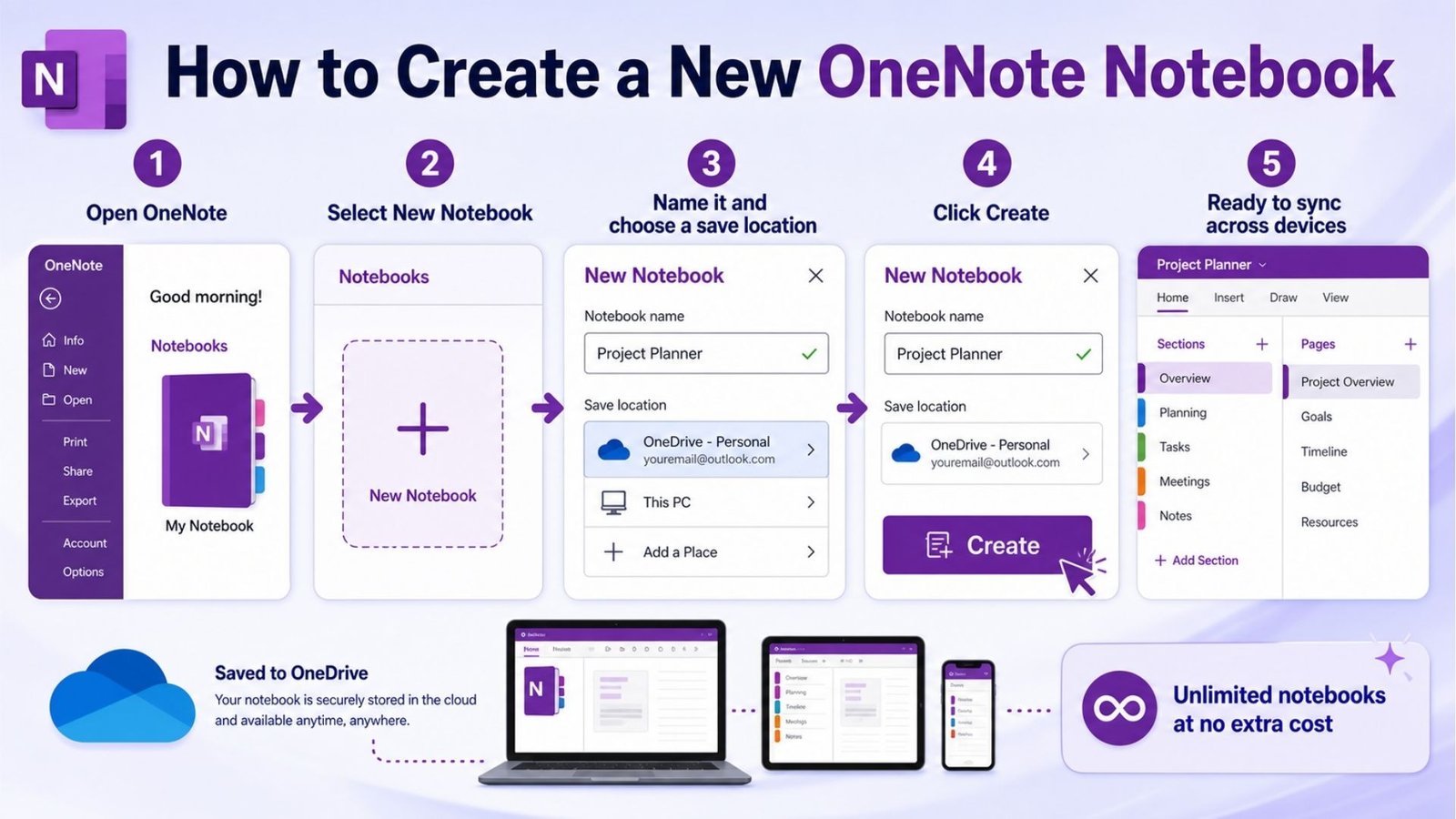
Whether you’re searching how to create a new OneNote notebook or specifically how to make a new notebook in OneNote, the process is the same short sequence across every platform:
One detail worth knowing: OneNote supports unlimited notebooks at no extra cost, so there’s no real downside to creating a separate notebook for a distinct area of your life rather than cramming everything into one.
When people search for the best notebook for OneNote setup, they’re usually asking how to structure notebooks rather than looking for a physical product. The most common approach that scales well long-term is separating notebooks by life area rather than by time period — a “Work” notebook and a “Personal” notebook, for example, rather than a new notebook every month or year, which tends to fragment related notes across too many places to search effectively later.
What works well:
Where it falls short:
OneNote’s biggest strength in 2026 is exactly what it’s always been: a free, flexible, handwriting-friendly notebook that fits naturally into a Microsoft 365 workflow. It’s not trying to be Notion, and for anyone who wants databases, structured workspaces, or built-in AI, it genuinely isn’t the right tool. But for students, Surface and iPad users, and anyone who wants a reliable freeform notebook without paying anything extra, it remains one of the smartest defaults available.
There’s no manual save button — OneNote saves continuously as you type and syncs automatically to OneDrive whenever you’re connected to the internet.
For a solo freelancer tracking a handful of clients, a tagged notebook system can work reasonably well. For a sales pipeline involving multiple people or automated follow-ups, a dedicated CRM tool is worth the investment.
Open OneNote, select “New Notebook,” name it, and save it to your OneDrive account. It automatically becomes available across every device signed into that Microsoft account.
For most people, yes, particularly with a stylus on Surface or iPad. The freeform canvas lets you build day, week, or habit-tracking layouts exactly how you want, without being locked into a fixed template grid.